How to use HTML Editor
HTML Editor is a browser-based HTML editor with a code view and a visual (WYSIWYG) view. Write or paste HTML, edit it visually, clean it up, and export it. Everything runs in your browser, so your documents stay on your device.
Quick start
Start a document
Open the editor and begin with the sample page, create a new document, or open an existing .html, .htm or .txt file with Ctrl+O.
Edit in code or visually
Type HTML in the code panel or use the visual toolbar. Both panels stay in sync, and your work is saved automatically.
Tidy and export
Run Format or Tidy HTML, review the changes, then copy the HTML or export it as a safe .html file.
Get to know the editor
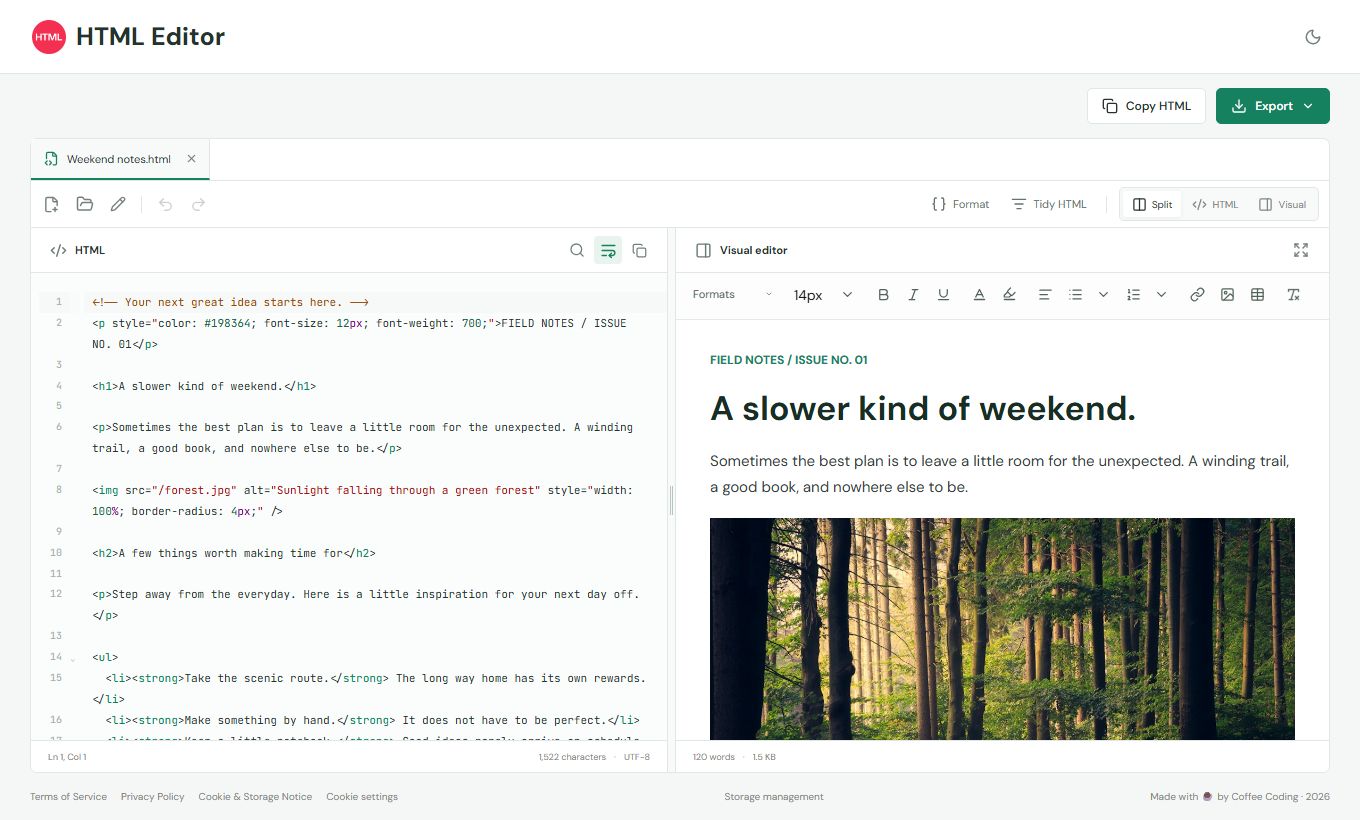
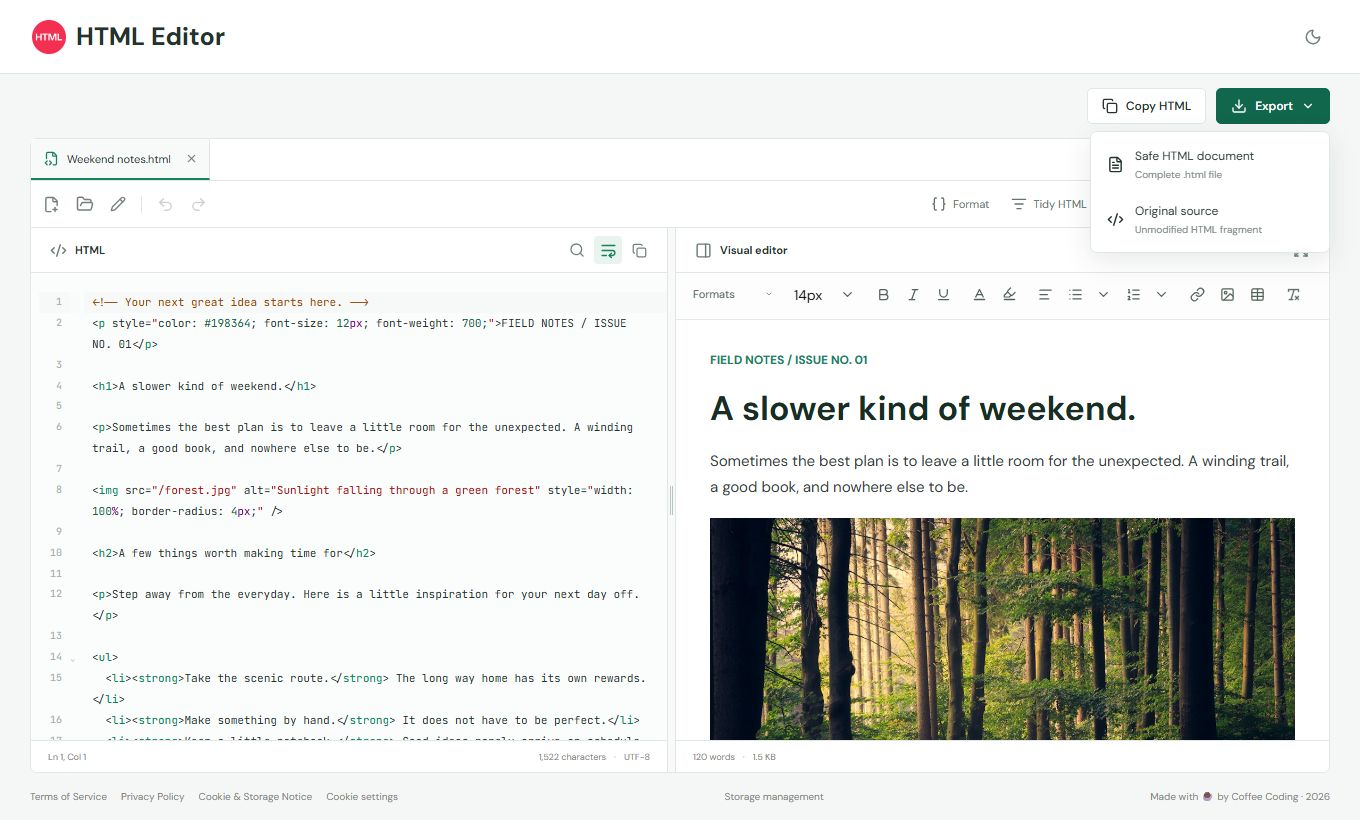
The editor has two panels. The HTML panel on the left is a code editor with line numbers and syntax highlighting. The Visual editor panel on the right shows the rendered page and offers a rich-text toolbar.
Use the Split, HTML and Visual buttons above the panels to choose the layout. In Split view, drag the divider between the panels to resize them. When the divider is focused, the left and right arrow keys move it.
- HTML panel: find and replace, a line wrapping toggle, and a copy button.
- Visual editor: formats, font size, bold, italic, underline, text and highlight colors, alignment, lists, links, images, tables and clear formatting.
- The status bar shows the cursor position, character count, word count and document size.
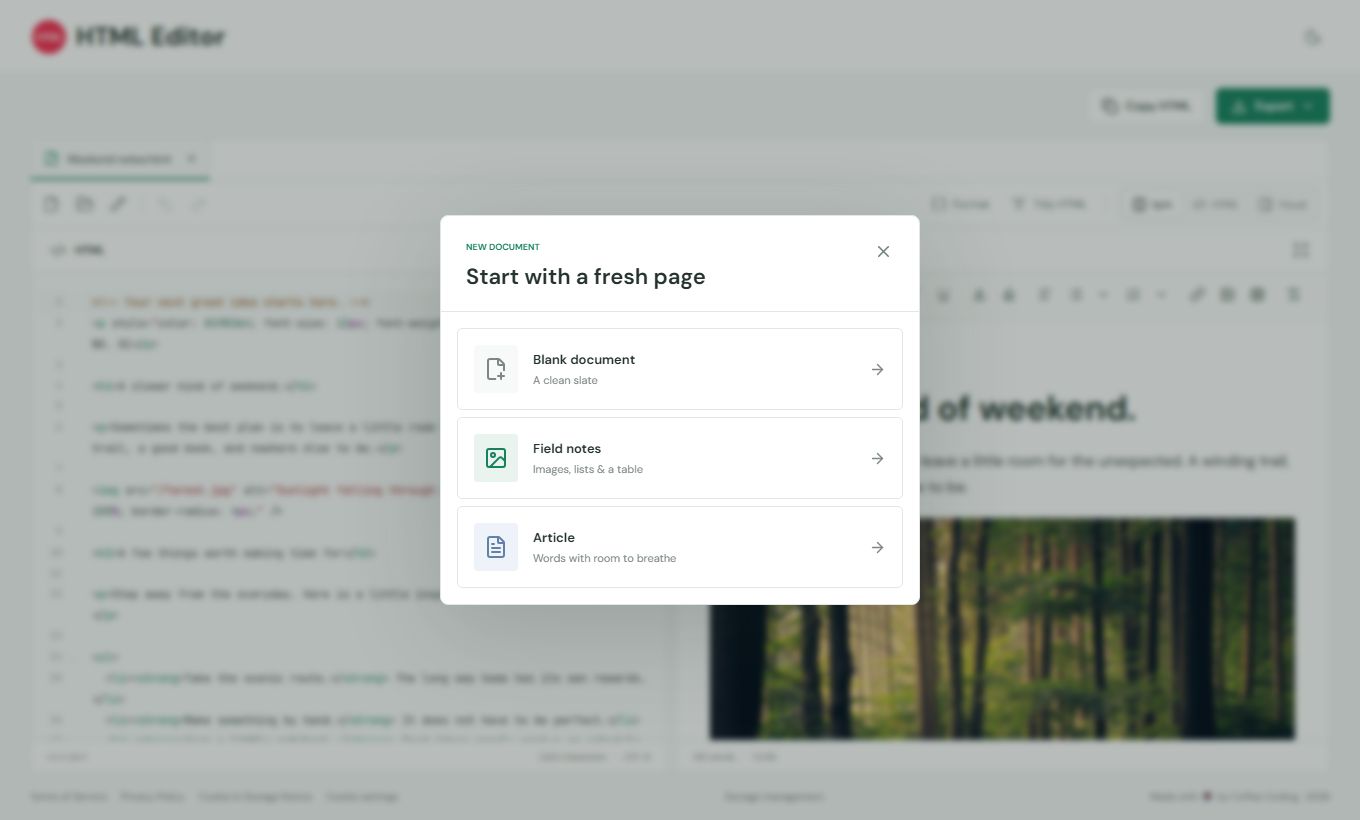
Create, open and manage documents
Select New document to start with a Blank document, the Field notes sample, or an Article. Select Open HTML file (or press Ctrl+O) to load a .html, .htm or .txt file of up to 3 MB from your computer.
Each document opens in its own tab. Use Rename document to change a title, close a tab with its x button, and use Reopen closed tab to bring back a tab you closed by mistake.
Edit HTML visually or in code
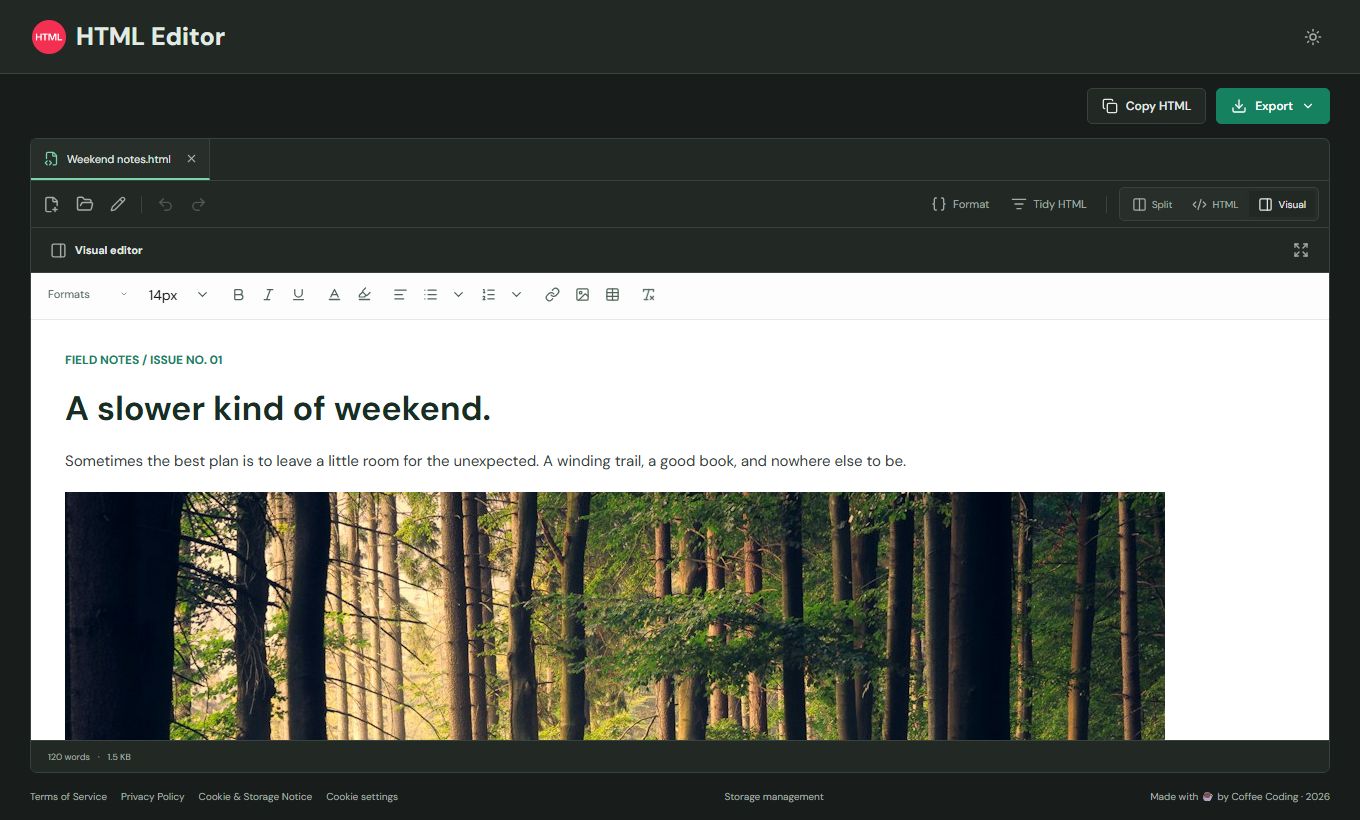
Edit in whichever view feels natural. Changes in the code panel appear in the visual editor, and changes made visually are written back to the HTML source.
Use Undo (Ctrl+Z) and Redo (Ctrl+Shift+Z) at any time. Switch to the Visual layout for a page-like editing experience, or to the HTML layout when you only need the code.
Format and tidy your HTML
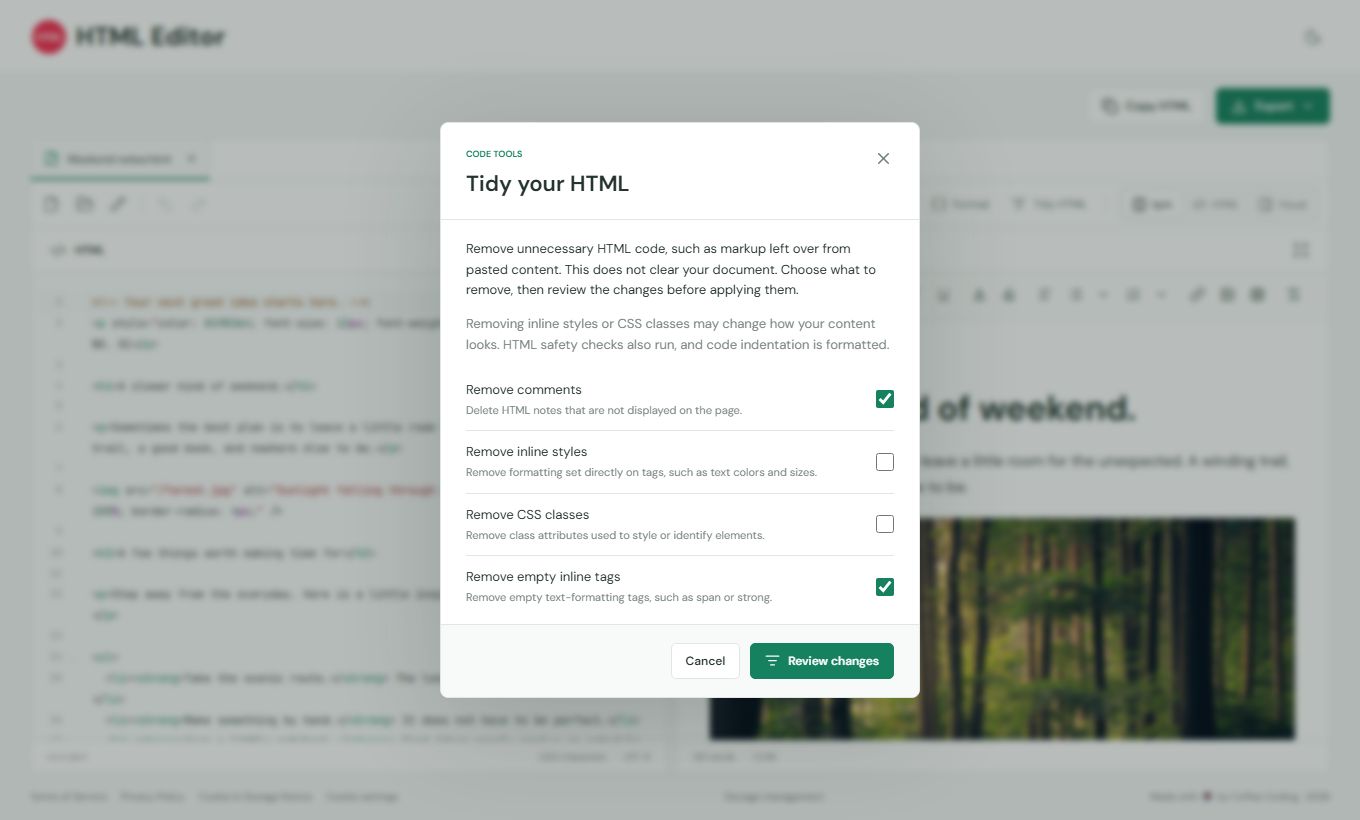
Format re-indents your HTML so it is easy to read. Tidy HTML removes unnecessary code, such as markup left over from pasted content, without clearing your document.
In Tidy HTML, choose what to remove, then select Review changes. You see exactly what will change before anything is applied.
- Remove comments: deletes HTML notes that are not displayed on the page.
- Remove inline styles: removes formatting set directly on tags, such as text colors and sizes.
- Remove CSS classes: removes class attributes used to style or identify elements.
- Remove empty inline tags: removes empty text-formatting tags such as span or strong.
Preview, copy and export
Select the expand icon in the Visual editor panel to preview your document in a safe preview. Select Copy HTML to copy the source to your clipboard.
Export offers two choices. Safe HTML document downloads a complete .html file with active content removed. Original source downloads your HTML fragment unchanged.
Privacy, storage and backups
Your documents stay in this browser. There are no accounts and no document uploads. Documents are saved automatically, and Ctrl+S saves immediately.
External images are blocked by default because loading them shares your IP address with the image server. You can allow them from the notice in the Visual editor panel.
Browser storage can be cleared or evicted by your browser, so download important documents as a backup. Use Storage management in the page footer to review or clear saved data.
Keyboard shortcuts
| Ctrl+O | Open an HTML file |
|---|---|
| Ctrl+S | Save the document now |
| Ctrl+Z | Undo |
| Ctrl+Shift+Z | Redo |
On macOS, use Cmd instead of Ctrl.
Frequently asked questions
Are my documents uploaded to a server?
No. Documents are stored in your browser and are not uploaded. See the Privacy Policy for details about how the website itself is delivered.
Do I need to create an account?
No. There are no accounts. Open the editor and start working.
What is the difference between Safe HTML document and Original source?
Safe HTML document exports a complete .html file with active content removed. Original source exports your HTML exactly as written, without changes.
Why are some images not showing?
External images are blocked by default to protect your privacy. Use the Load external images button in the Visual editor panel to show them.
Will Tidy HTML delete my content?
No. Tidy HTML only removes the kinds of code you select, and you review every change before applying it.
What happens if I clear my browser data?
Documents saved in your browser are removed with it. Export important documents regularly as a backup.
What if the same document is open in two browser tabs?
The editor warns you about the conflict and lets you choose Load latest or Keep mine.
How are my documents saved, and can I use them on another device?
Autosave stores documents in IndexedDB in the current browser profile. Ctrl+S (Cmd+S on macOS) saves immediately. Check the save indicator for errors or conflicts. There is no cloud backup or device sync; export a document and open the file on your other device.
Can I recover a document after closing its tab?
Yes. Closing a document tab does not delete its saved document. Use Reopen closed tab to restore it. Documents cannot be recovered here after you clear browser site data or use Storage management > Clear all documents, so export important work first.
Which files can I open, and why has visual editing paused?
Open HTML file accepts .html, .htm and .txt files up to 3 MB. Complete HTML imports extract body content for review before applying. Documents over 300,000 characters remain editable in the HTML source panel, but visual editing pauses to keep the editor responsive.
Can I run JavaScript or build a complete website here?
This is an HTML body-fragment editor, not a website runtime or hosting service. Visual editing and previews remove unsupported or active content and block scripts. Original source exports can still contain scripts you entered; do not open untrusted source exports as websites.
Do I have to accept optional cookies to use the editor?
No. Reject optional keeps editing and essential document storage available. Optional permissions control remembered editor preferences and Google Analytics, not access to editing. You can change them later using Cookie settings in the editor footer.
Ready to edit?
Open HTML Editor and start writing. No account is needed.